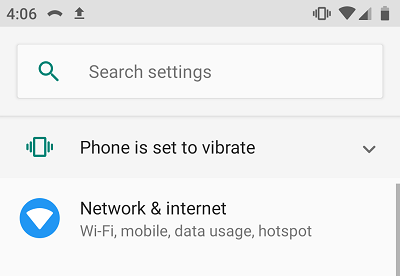
- On your Android device, go to “Settings”.
- Choose “Connections”.
- Connect the device to "asu-visitor".
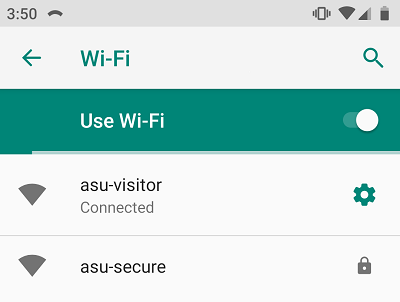
- Select Connect (if prompted).
- Open the mobile internet browser and go to http://wifi.appstate.edu
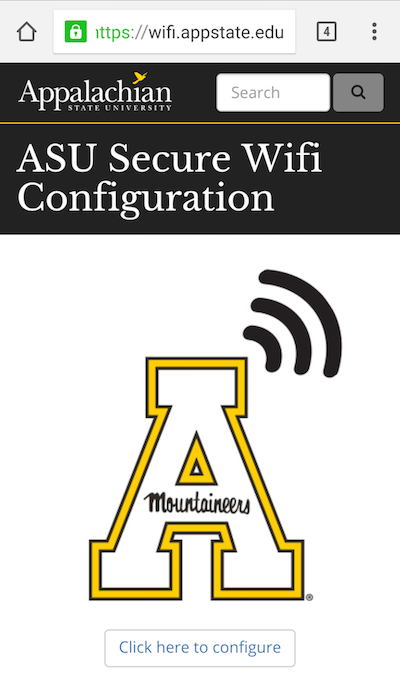
- You should see a screen with your operating system already chosen. If the wrong operating system is selected, use the drop-down menu next to "Select your device:" to correct the selection.
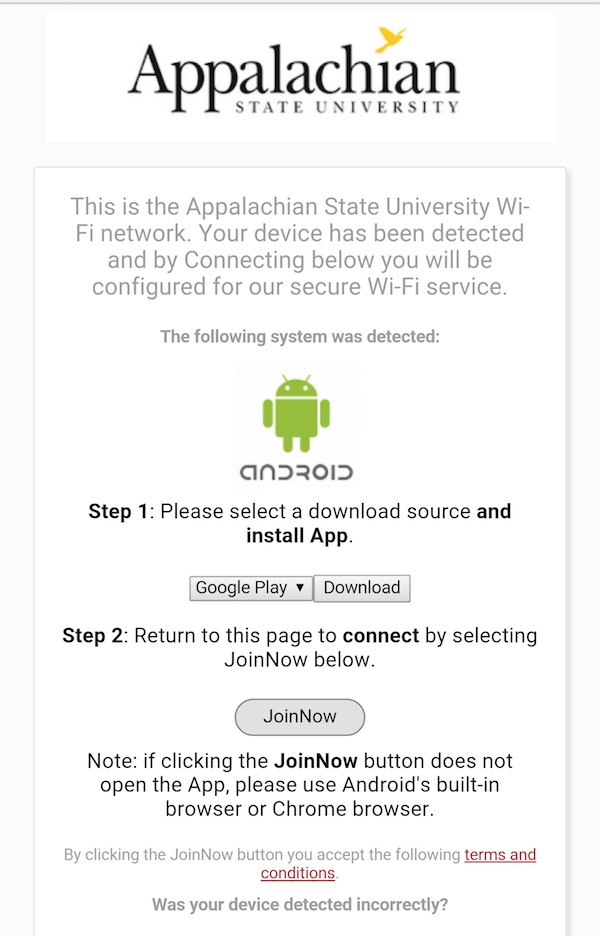
- Select “download”.
- On the Google Play store SecureW2 JoinNow application screen, select “Install”.
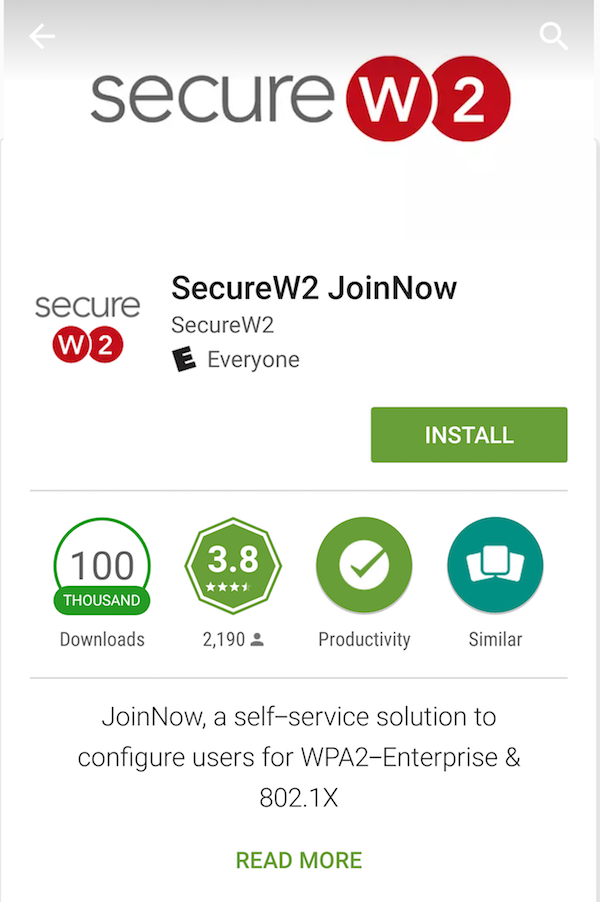
- Select “Accept”.
- After the application installs, select “Open”.
- On the Shibboleth Authentication screen, enter your App State credentials. (Note: If you are a new student, you will need to change your password after registering for classes as class registration is the secure wireless eligibility trigger.)
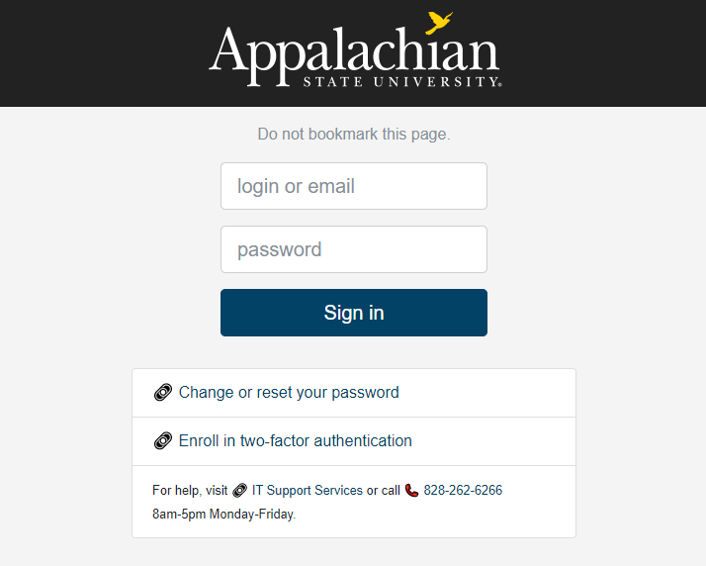
12. Select “Sign in”.14. Once the wireless configuration portal is complete. Select “Done”.
15. You are now connected to asu-secure on your Android device.