
Connect to asu-secure Network on iOS
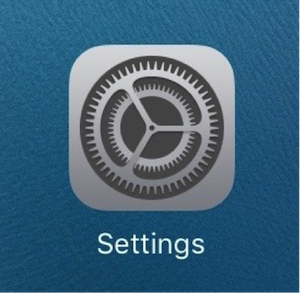
- On your device's home screen, select the "Settings" application.
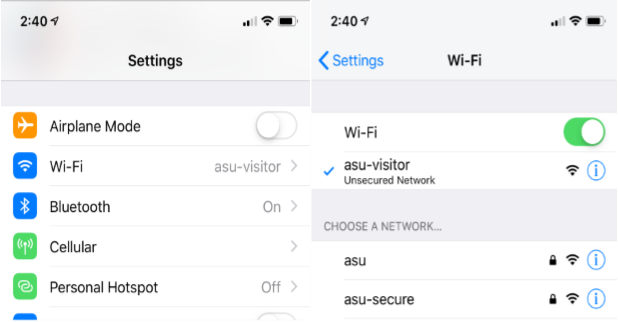
- Select "WiFi".
- Make sure the WiFi button is set to "ON" (Green is on). Select "asu-visitor" from the list of available wireless networks.
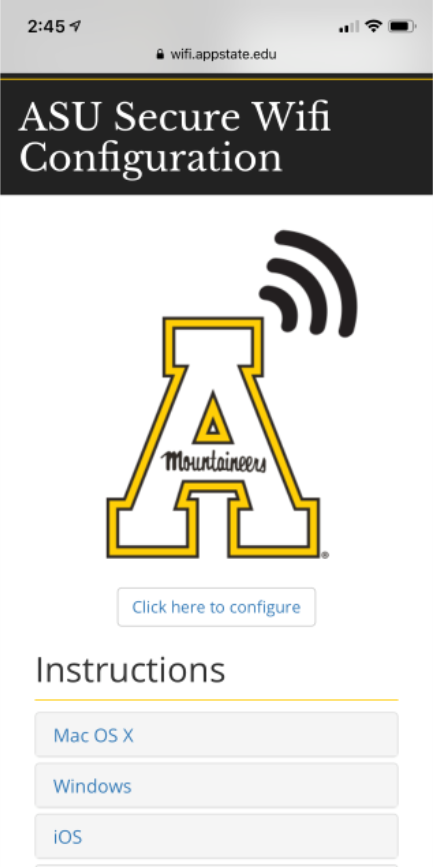
- Tap the Home button to go back to the home screen and open the Safari browser. Go to http://wifi.appstate.edu.
- Tap the "Click here to configure" button.
- You should see a screen with your operating system already chosen. If the wrong operating system is selected, use the drop-down menu next to "Select your device:" to correct the selection. Click the Sign In button, then authenticate on the Shibboleth Authentication screen.
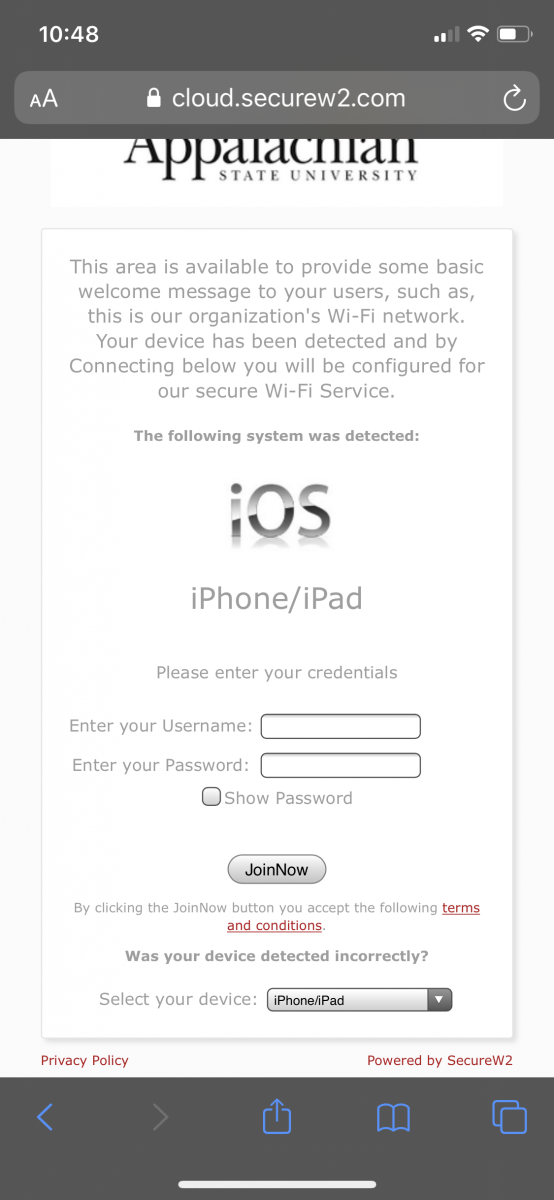
- Click "JoinNow".
- Select Allow on the pop-up.
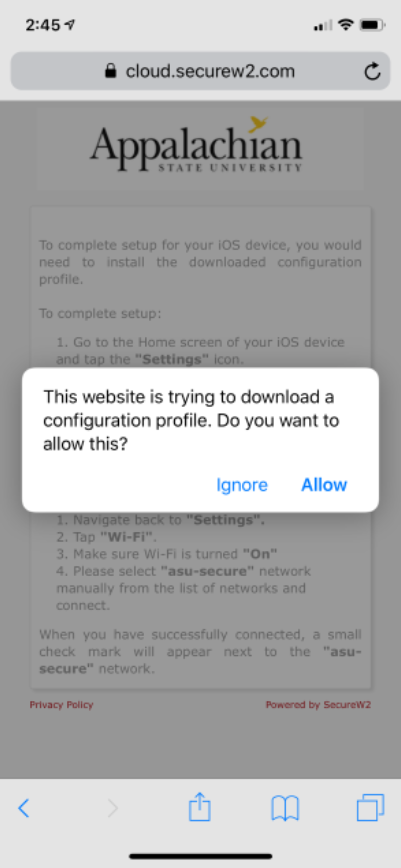
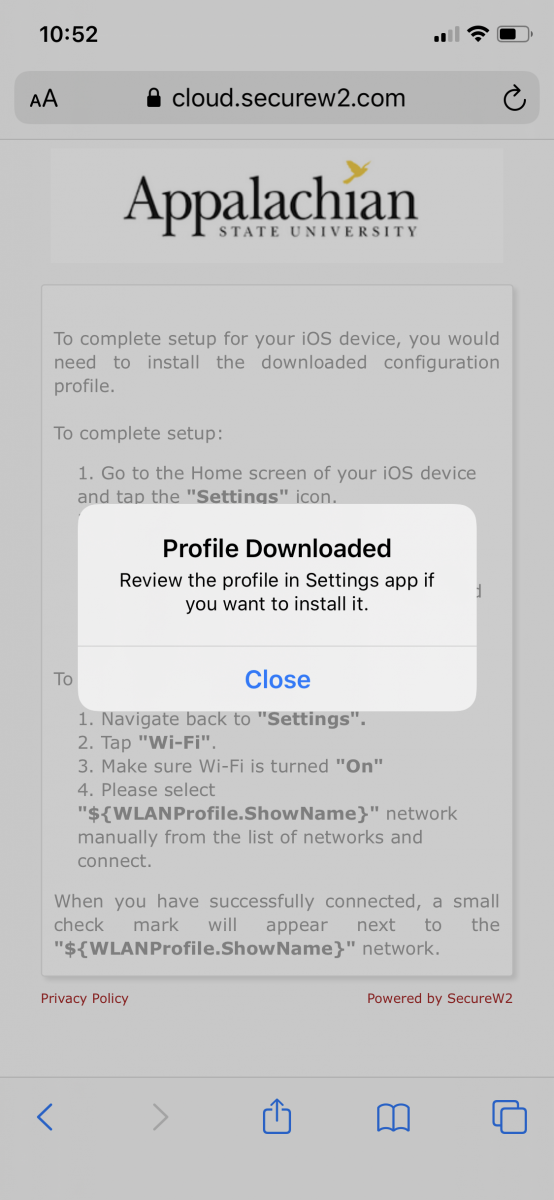
- If you are prompted please enter your passcode for your device. You will then receive a notification that the profile has been downloaded.
- Go back to your Settings app on your iPhone.
- You will see "Profile Downloaded".
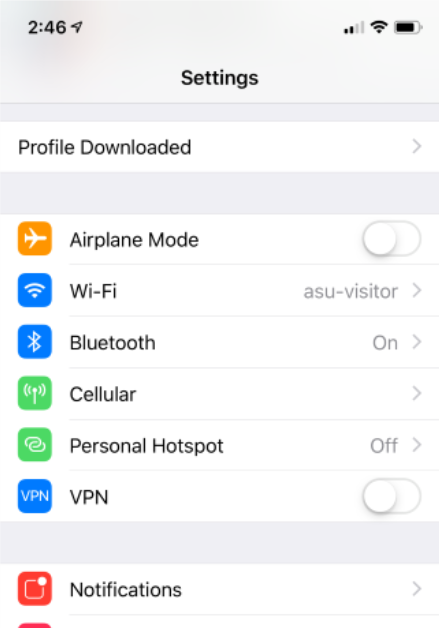
- Select "Profile Downloaded" and then select "Install".
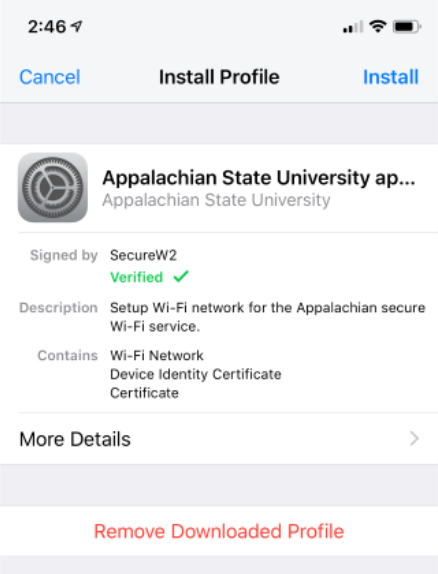
- Select Install on the Root Certificate Installation Warning.
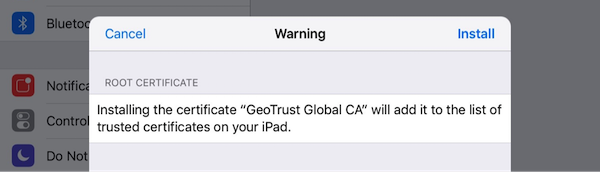
- After the wireless profile is installed. Select Done.
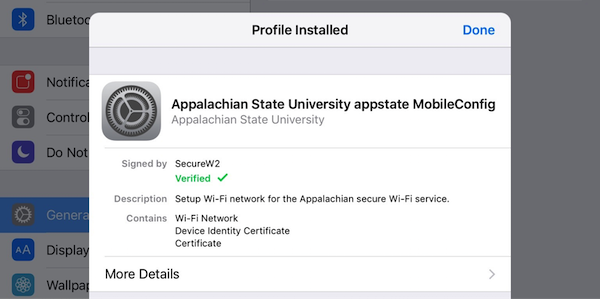
- Note: The Wireless Certificate will be stored in Settings, under General —-> Profile.
- After the certificate is installed, navigate back to "Settings" and select "Wi-Fi". Select "asu-secure" as your wi-fi network. You will receive a notification asking you to trust the certificate.
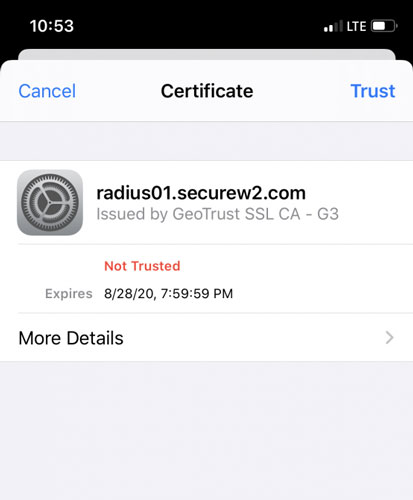
- Once you select "Trust" in the top right you will now be connected to asu-secure.